
Download Logitech Touch Mouse Server – Remote Mac Control, iPhone & iPod Touch App
Overview
Logitech Touch Mouse Server transforms your iPhone or iPod Touch into a fully functional remote control for your Mac. Sitting discreetly in the menu bar, the server monitors the connection status and instantly activates the handheld device as the primary input method once paired. Whether you need a quick shortcut to launch apps, a hands‑free way to navigate presentations, or simply want to free up your desk space, this lightweight utility delivers a seamless bridge between iOS and macOS.
The companion Touch Mouse app, available for free from the Apple App Store, handles the Bluetooth or Wi‑Fi pairing, allowing you to select the target Mac from a dynamic list. Once connected, the server icon updates, confirming a secure and low‑latency link. While the concept may feel niche, many power users discover that having a pocket‑sized controller is a game‑changer for multi‑tasking, media playback, and accessibility.
The software is free to download, receives regular updates, and respects Apple’s security standards, making it a trustworthy addition to any Mac‑centric workflow.
Key Features & How It Works
- Instant iOS‑to‑Mac pairing: Select your Mac from the Touch Mouse app’s device list and connect with a single tap.
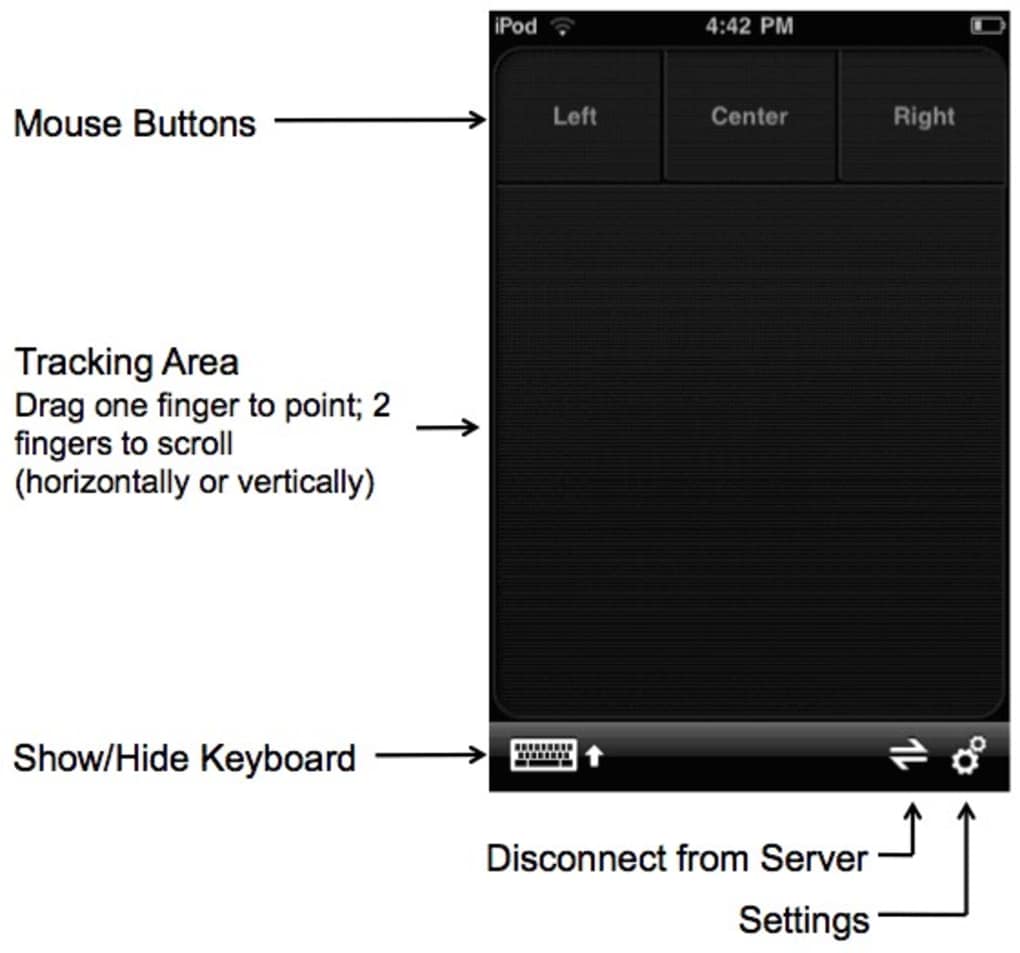
- Full mouse emulation: Move the cursor, click, drag, and scroll using familiar gestures on your iPhone or iPod Touch.
- Customizable shortcuts: Assign hotkeys or launch specific applications directly from the iOS interface.
- Menu‑bar status indicator: Real‑time visual feedback shows when the iOS device is connected, disconnected, or encountering an error.
- Low‑latency communication: Optimized for both Bluetooth and local Wi‑Fi, ensuring responsive control even for precise tasks.
- Secure connection: Uses Apple’s built‑in encryption protocols; no third‑party servers store your input data.
- Automatic updates: The server checks for new versions on launch, prompting you to keep the software current.
- Lightweight footprint: Consumes less than 15 MB of RAM, leaving the majority of system resources available for other applications.
Why It Stands Out
Unlike generic remote‑desktop tools that stream entire screens, Logitech Touch Mouse Server focuses on input emulation, which drastically reduces bandwidth usage and latency. This specialization makes it ideal for environments where a full remote desktop would be overkill—such as controlling media playback in a home theater setup, navigating slides during a conference, or simply freeing a laptop’s trackpad while you’re on a couch. The tight integration with macOS means the server respects system‑wide accessibility settings, allowing users with visual impairments to benefit from VoiceOver‑compatible gestures. Moreover, the app’s interface mirrors Apple’s design language, providing a familiar look and feel that minimizes the learning curve. For developers and power users, the ability to script custom actions via macOS’s built‑in Automator or AppleScript opens a world of automation possibilities, turning your iPhone into a programmable macro pad.
Installation, Usage & Compatibility
Step‑by‑Step Installation
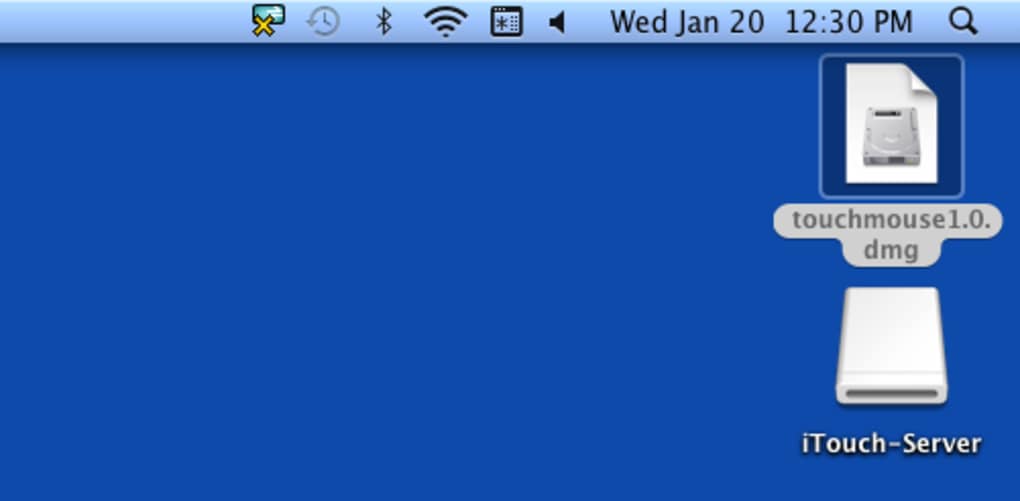
- Download the server: Visit Logitech’s official website or the Mac App Store and download “Logitech Touch Mouse Server.” The installer is a standard .dmg file.
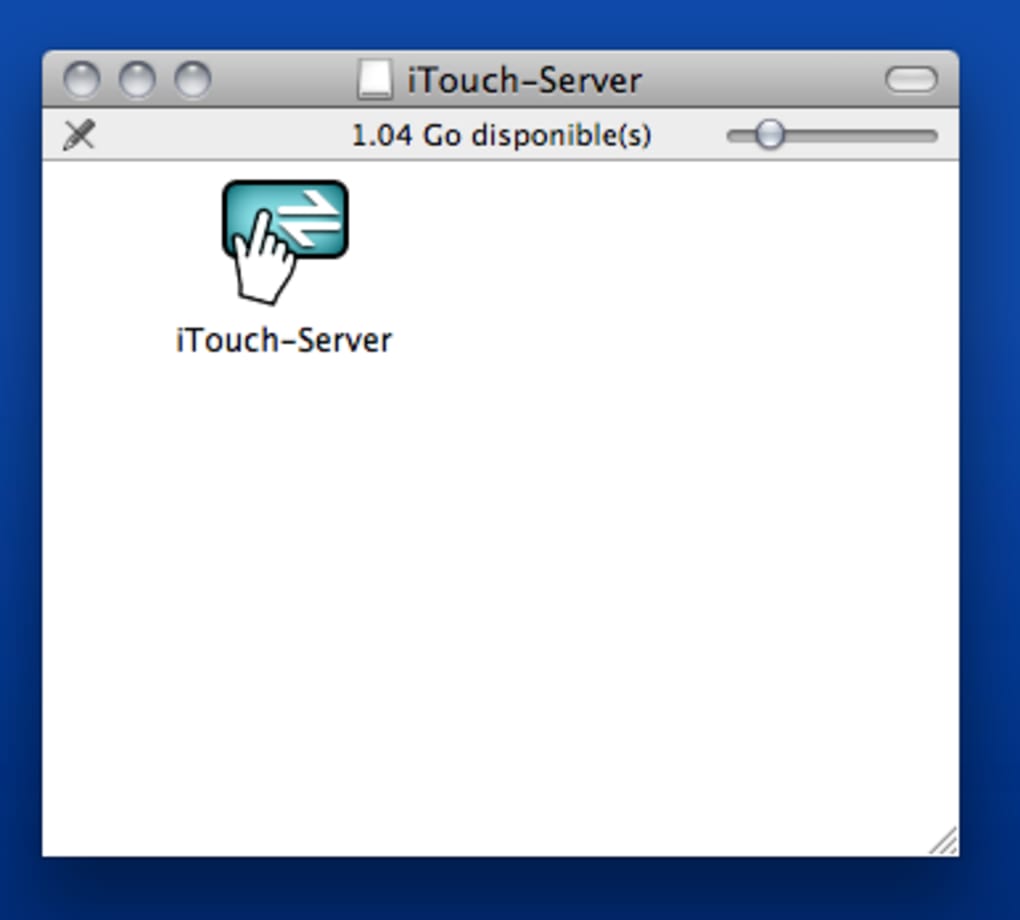
- Run the installer: Open the .dmg, drag the application to your Applications folder, and launch it. macOS will ask for permission to control your computer; grant access in System Preferences → Security & Privacy → Accessibility.
- Verify the menu‑bar icon: After launch, a tiny mouse icon appears in the menu bar, indicating the server is ready.
- Install the iOS companion: Open the App Store on your iPhone or iPod Touch, search for “Logitech Touch Mouse,” and install the free app.
- Pair the devices: Open the Touch Mouse app, ensure Wi‑Fi or Bluetooth is enabled, and select your Mac from the automatically generated list. Tap “Connect.”
- Start controlling: Once the icon turns green, you can begin using gestures on your iOS device to move the cursor, click, and execute shortcuts.
Operating System Requirements
The server requires macOS 10.13 (High Sierra) or later. It runs natively on both Intel‑based Macs and Apple Silicon (M1/M2) machines, thanks to Apple’s universal binary support. The iOS companion supports iOS 12.0 or later and works on iPhone, iPod Touch, and iPad (in compatibility mode). No additional drivers are needed, and the software is compatible with macOS security frameworks such as Gatekeeper and Notarization.
Best‑Practice Usage Tips
For optimal performance, keep both devices on the same Wi‑Fi network or enable Bluetooth Low Energy (BLE) pairing if you prefer a cable‑free setup. Avoid heavy network traffic on the same band to minimize latency spikes. If you experience occasional disconnects, try resetting the Bluetooth module on your Mac (Shift + Option + Bluetooth icon → “Reset the Bluetooth module”). Additionally, you can customize the iOS app’s gesture sensitivity in the Settings menu, tailoring the control experience to your hand size and preferred speed.
Troubleshooting Common Issues
Should the server fail to appear in the iOS app, verify that the macOS firewall allows inbound connections for “Logitech Touch Mouse Server.” Navigate to System Preferences → Security & Privacy → Firewall → Firewall Options and ensure the app is listed as “Allow incoming connections.” If the menu‑bar icon disappears after a macOS update, reinstall the latest version of the server from Logitech’s website, as newer releases address compatibility changes introduced by Apple.
Pros, Cons & Frequently Asked Questions
Pros
- Free to download and use with no hidden fees.
- Lightweight, low‑resource footprint.
- Secure, encrypted connection using Apple’s native protocols.
- Highly responsive cursor control via Bluetooth or Wi‑Fi.
- Customizable shortcuts and integration with macOS automation tools.
- Works on both Intel and Apple Silicon Macs.
Cons
- No native Windows or Linux support; Mac‑only.
- Limited to iPhone, iPod Touch, and iPad (as a secondary controller).
- Requires granting Accessibility permissions, which some users may find intrusive.
- No built‑in screen sharing; purely input‑focused.
- Occasional latency on congested Wi‑Fi networks.
FAQ
Can I use Logitech Touch Mouse Server with multiple Macs at the same time?
Yes. The server can run on multiple Macs simultaneously, each with its own menu‑bar icon. From the iOS app you simply select the desired Mac from the list of available devices.
Is there any data collection or telemetry?
Logitech states that the application does not transmit any mouse movement data to external servers. All communication is encrypted and stays within your local network or Bluetooth link.
What should I do if the iPhone stops responding?
First, check the menu‑bar icon to confirm the connection status. If it shows disconnected, reopen the Touch Mouse app and reconnect. Restarting both the Mac server and the iOS app often resolves lingering Bluetooth glitches.
Can I customize the gestures on the iOS side?
Yes. Within the iOS app’s Settings you can adjust swipe sensitivity, enable double‑tap for right‑click, and assign custom actions to multi‑finger gestures.
Is the software compatible with macOS Ventura and later?
The latest version (as of 2025) fully supports macOS Ventura, Monterey, and later releases. Logitech regularly updates the server to maintain compatibility with Apple’s OS changes.
Conclusion & Call to Action
Logitech Touch Mouse Server offers a surprisingly powerful way to turn any iPhone or iPod Touch into a dedicated remote for your Mac. Its free price tag, minimal resource usage, and secure design make it an appealing addition for creatives, presenters, and accessibility‑focused users alike. While it’s limited to macOS and iOS ecosystems, the focused feature set delivers a buttery‑smooth experience that many general‑purpose remote‑desktop tools can’t match. If you’re looking to declutter your desk, improve workflow efficiency, or simply enjoy a novel way to interact with your computer, give Logitech Touch Mouse Server a try. Download the server today, install the companion app on your iOS device, and start controlling your Mac with a tap of your thumb.







